
Managing Teams and Roles
Once you have set up a Workspace, you can invite team members to collaborate on the sites within it. Team collaboration is managed directly from the Members page of your active workspace.
The Members Dashboard
After selecting a workspace, navigate to its team settings. Here you will see:
- Seats Used: Displays how many team seats are currently occupied out of your plan's limit (e.g., "1 / 3 seats used (owner excluded)"). If you need to invite more people, you can purchase additional seats by going to the Billing section and selecting Add Teammate option. For more details on how team limits affect your billing across different environments, see Workspace Plans and Membership.
- Member List: A table displaying current members, their Role, the number of Sites they have access to, and the date they Joined.

How to Invite a New Team Member
To add someone to your workspace:
- Locate the Invite by email section on the Workspace - Members page.
- Enter the email address of the person you want to invite.
- Select the appropriate permission level for this user from the Role dropdown (e.g. Developer, Finance, Viewer, or a Custom Role).
- You can restrict the user's access to specific websites within the workspace. If left blank, they typically have access to all sites (depending on their role).
- Click the button to send the invitation.

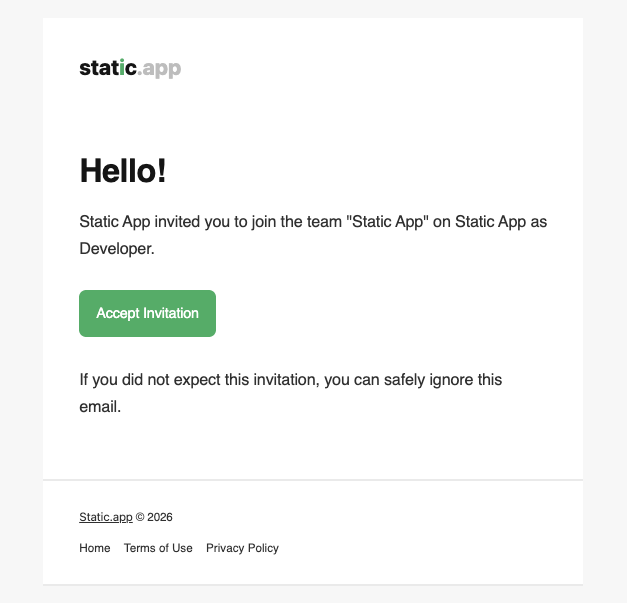
The invited user will receive an email prompting them to join your Static.app workspace.
Managing Pending Invitations
Once an invitation is sent, the user will be added to the Pending invitations section. Here, you can monitor and manage invites that haven't been accepted yet:
- Email: The email address the invitation was sent to.
- Role: The permission level assigned to the pending member.
- Expires: The date the invitation link will expire (invitations are valid for 1 week from the date sent).
- Revoke: If you sent an invite by mistake or want to cancel it, you can click the Revoke button to instantly invalidate the invitation.

Understanding System Roles and Permissions
When inviting or editing a team member, you must assign them a specific role. Static.app provides three system roles tailored to different team responsibilities.
- Developer: Full access to sites, files, domains, and analytics. No billing or team management.
- Finance: View-only access to the billing plan page. All payments are handled in Stripe.
- Viewer: Read-only access to sites, files, pages, forms, domains, and analytics.
The comparison table below outlines the exact permissions granted to each system role:
| Category | Developer (25 Permissions) | Finance (2 Permissions) | Viewer (8 Permissions) |
|---|---|---|---|
| Sites |
|
- | sites.view |
| Files |
|
- | files.read |
| Pages | pages.view , pages.create , pages.update , pages.delete |
- | pages.view |
| Forms | forms.view , forms.create , forms.update , forms.delete , forms.entries.view , forms.entries.delete , forms.entries.export |
- | forms.view , forms.entries.view |
| Domains | domains.view , domains.manage |
- | domains.view |
| Analytics | analytics.view |
- | analytics.view |
| API | api.view , api.manage |
- | - |
| Billing | - | billing.view |
- |
| Team | team.members.view |
team.members.view |
team.members.view |
Creating Custom Roles
If the default system roles don't perfectly fit your needs, you can create Custom Roles to grant highly specific permissions.
- On the Workspace - Members page, locate the Invite by email section and click the "?" icon next to the Role column.
- You will be redirected to the Roles page. Here, you can view all existing Workspace roles.
- To make a new one, click the "Create role" button.
- Enter a Name and a brief Description for your custom role.
- Select the exact Permissions you want to grant by checking the relevant boxes. You can choose to grant All permissions or select specific ones from the categories below:
| Category | Available Permissions |
|---|---|
| Sites | sites.view , sites.create , sites.update , sites.delete , sites.transfer |
| Files | files.read , files.upload , files.update , files.delete |
| Pages | pages.view , pages.create , pages.update , pages.delete |
| Forms | forms.view , forms.create , forms.update , forms.delete , forms.entries.view , forms.entries.delete , forms.entries.export |
| Domains | domains.view , domains.manage |
| Analytics | analytics.view |
| Billing | billing.view |
| Team | team.settings.view , team.settings.manage , team.members.view , team.members.manage |
- Save your new role. It will now be available in the dropdown menu when inviting or editing team members.

Editing or Removing a Team Member
To modify a member's permissions or assign them to specific projects, click on their entry in the Member List. You will be redirected to the Edit Member page, where you can manage:
- Role: Change their permission level via the dropdown.
- Sites access: Use the checkboxes to select the specific sites this member is allowed to access.
- Remove Member: If you need to revoke a user's access entirely, use the remove option on this page to permanently delete them from the workspace.
Click the Save Changes button to apply any updates.
