
Workspace Plans and Membership
Workspace Plans and Membership
Each workspace in Static.app operates as an independent environment. If you haven't set one up yet, we recommend checking out Getting Started with Workspaces first. Because of this isolated setup, billing, subscription tiers, and your membership status are tied directly to specific workspaces rather than your global user account.
Workspace Plans and Billing
Each workspace operates independently and has its own associated subscription plan.
- Default Free Plan: Whenever you create a new workspace, it is automatically assigned the Free plan by default.
- Upgrading Individual Workspaces: You can upgrade or manage the plan for each workspace separately. This flexibility allows you to keep a personal testing workspace on a Free plan while upgrading a client's workspace to a Paid, high-traffic plan.
Important Note on Upgrading:
When upgrading or managing a plan, make sure the correct workspace is selected. Always verify your currently active workspace via the dropdown menu at the top of your dashboard before navigating to the billing settings to ensure you are applying the upgrade to the intended workspace.
Joining a Workspace as an Invited Member
If you receive an invitation from an owner to join an existing workspace, the onboarding process is seamless:
-
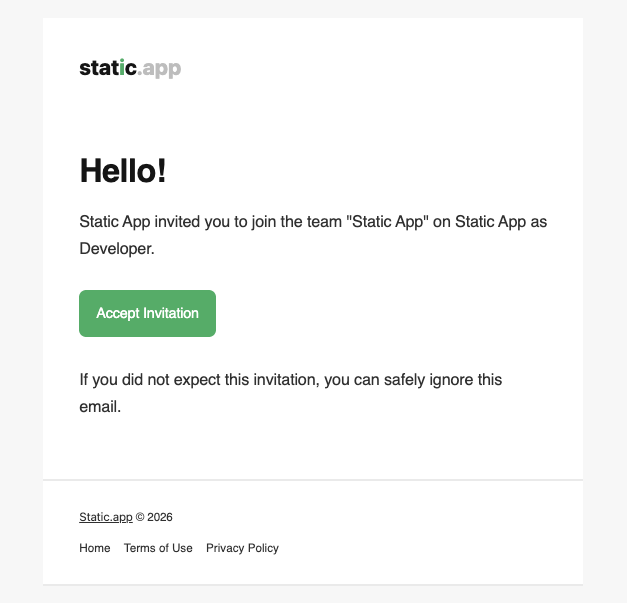
Accept the Invitation: Click the link in the invitation email you receive.
Accessing the Workspace: Once accepted, the new workspace is instantly added to your account. You can easily switch to it using the workspace dropdown menu at the top of your dashboard.
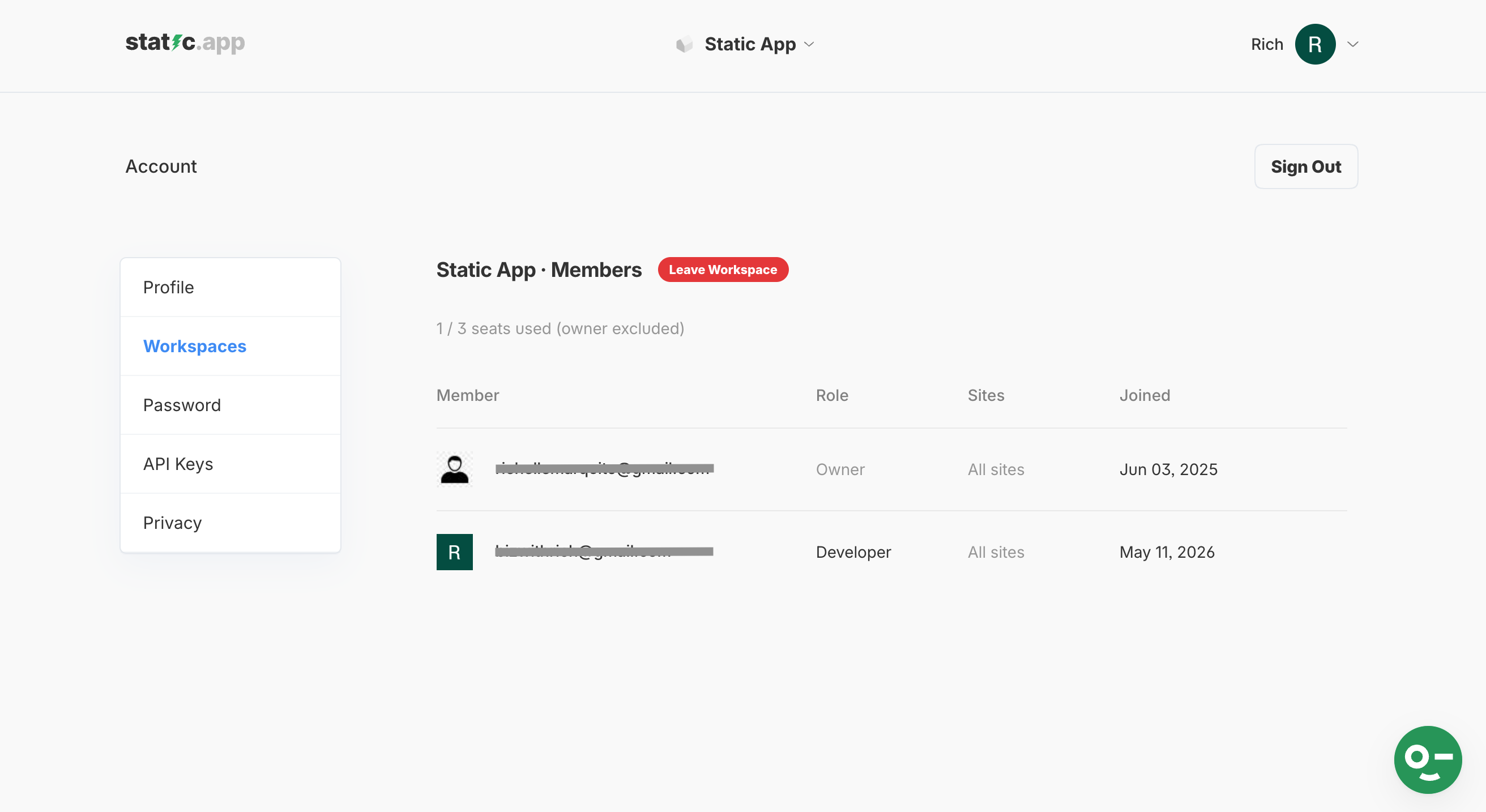
Viewing Workspace Details: You can verify your membership by navigating to the Workspaces page (via the dashboard dropdown). Here, you will see the workspace listed.
-
While you can see the workspace owner, your assigned role, the number of sites, and the date you joined, you cannot edit these details as an invited member.
-
- Leaving a Workspace: If you no longer need access, you have the option to leave the workspace directly from the Workspaces page. This will remove your access without affecting the owner's data.
If you are a workspace owner looking to send these invitations and configure access levels for your own team, please refer to Managing Teams and Roles.