Meet Static App Sync: The Desktop App for Seamless Website Hosting
Say hello to the Static App Sync desktop application. It is built to make syncing files and folders between your computer and the cloud completely effortless, giving you a faster and easier way to host static websites.
If you already enjoy the ease of hosting on Static.app, your daily workflow is about to get a major upgrade. This new dedicated desktop tool acts as a direct bridge between your local workspace and the internet, removing the hassle of manual uploads and bringing website management right to your screen.
- Work on your own time: Edit your project on your computer and publish it whenever you are ready.
- Never miss a save: Both local and remote changes sync automatically in the background.
- Multitask with ease: Manage and work on several different projects at the same time without confusion.
Here is everything you need to know to set up your smooth, local-to-cloud workflow.
How to Set Up Static App Sync
Getting your sites connected takes just a few clicks. Follow this simple guide to set up the app and bring your web projects straight to your computer.
Download and Install
- Download the application file here: https://static.app/download. Once the download starts, Static App Sync for macOS is on its way
- Find the file (.dmg) in your Downloads folder and double-click it.
- Drop Static App Sync into your Applications folder to install it.
Note:
The app is currently available for Mac, with the Windows version coming soon.
Log In and Connect
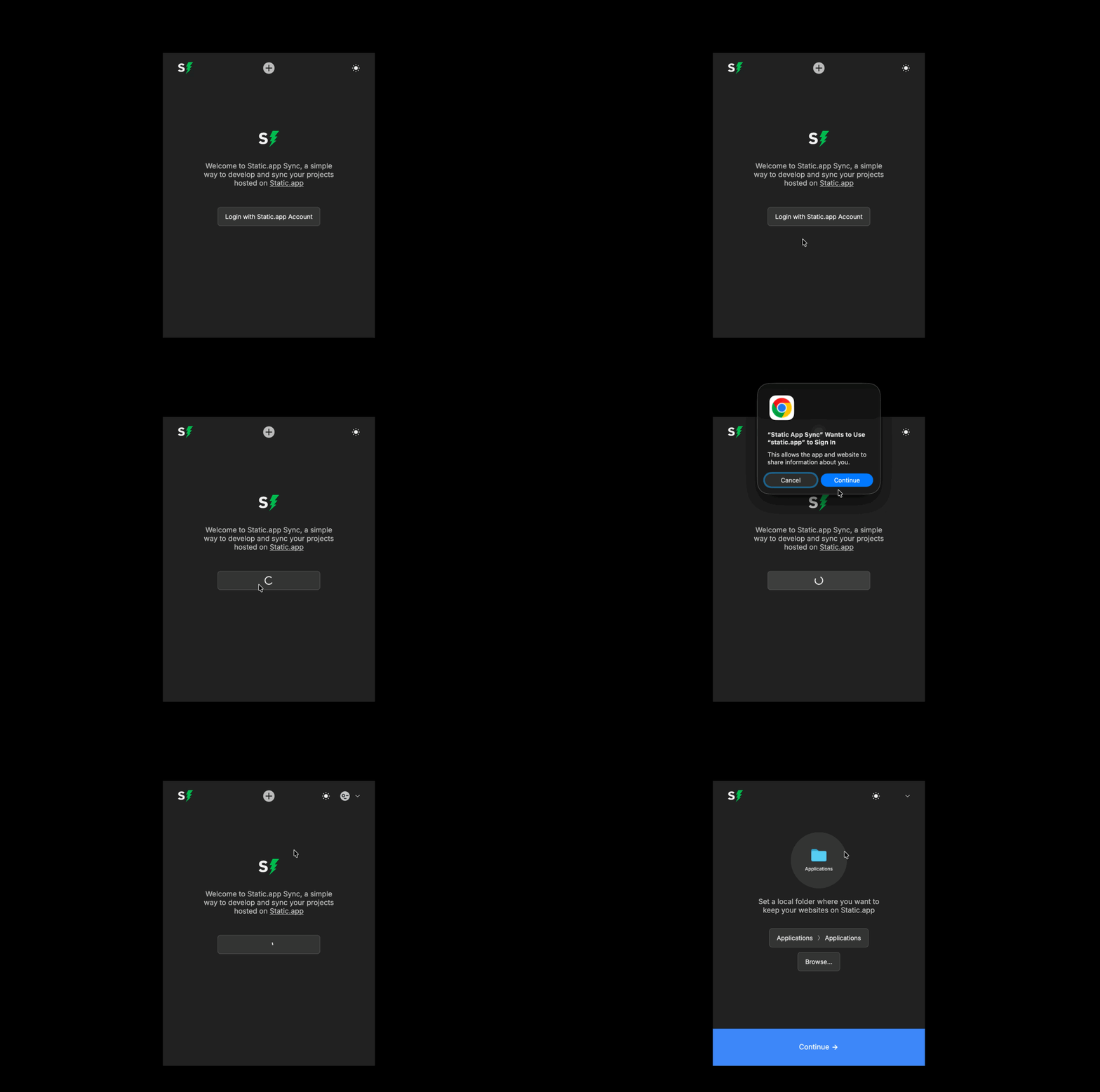
- Open the newly installed app.
- You will be asked to log in. Use your normal Static.app credentials (the same ones you use for the web version).
- Next, click on the Browse button to choose a specific local folder on your computer. This is where the app will securely store your website files.
-
Click Continue.
Add Your Websites
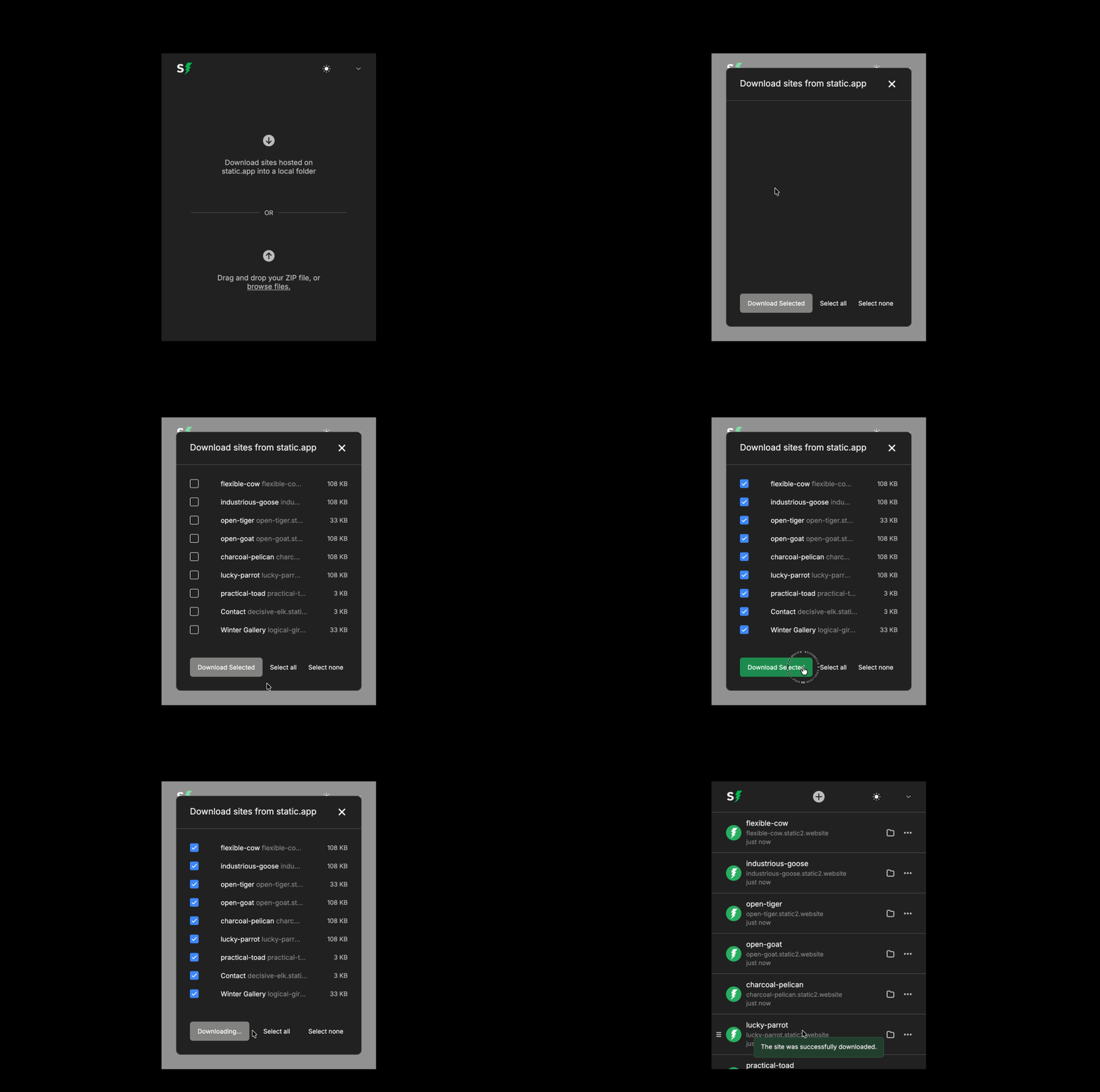
The app will ask you how you want to bring your sites into the desktop dashboard. You have two choices:
-
Option 1: Download your hosted sites. Choose this option to view the sites you currently host on Static.app. You can select one or more of these sites to download straight to your computer.
-
Option 2: Drag and drop a new file. If you have a new project, simply drag and drop the file or browse your computer to find it. Just make sure the project is packaged as a
.zipfile.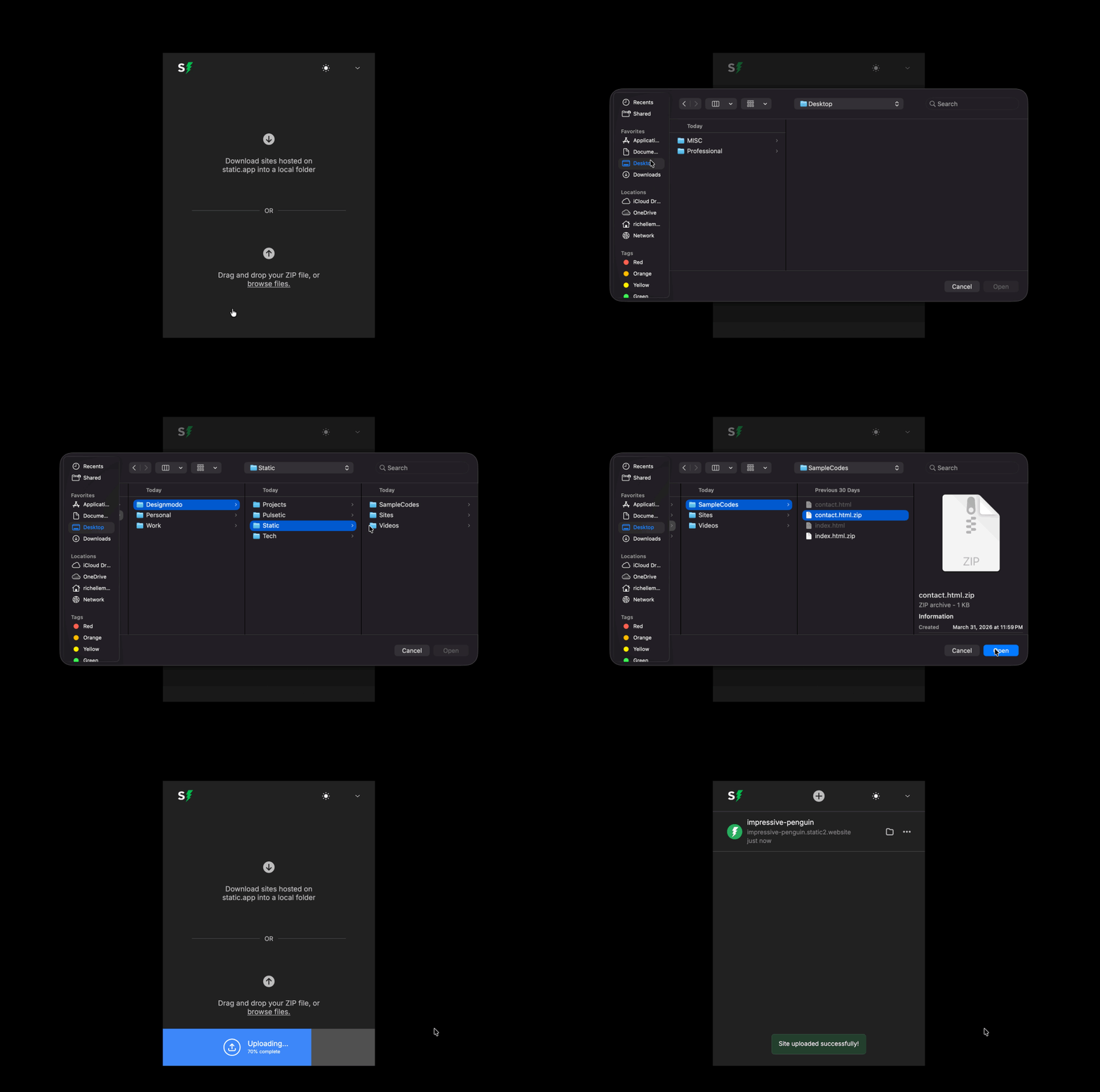
Whichever method you choose, your websites will quickly be added and listed clearly in your main dashboard.
Manage Everything Locally
Once your sites appear in the dashboard, controlling them is highly intuitive and easy to understand:
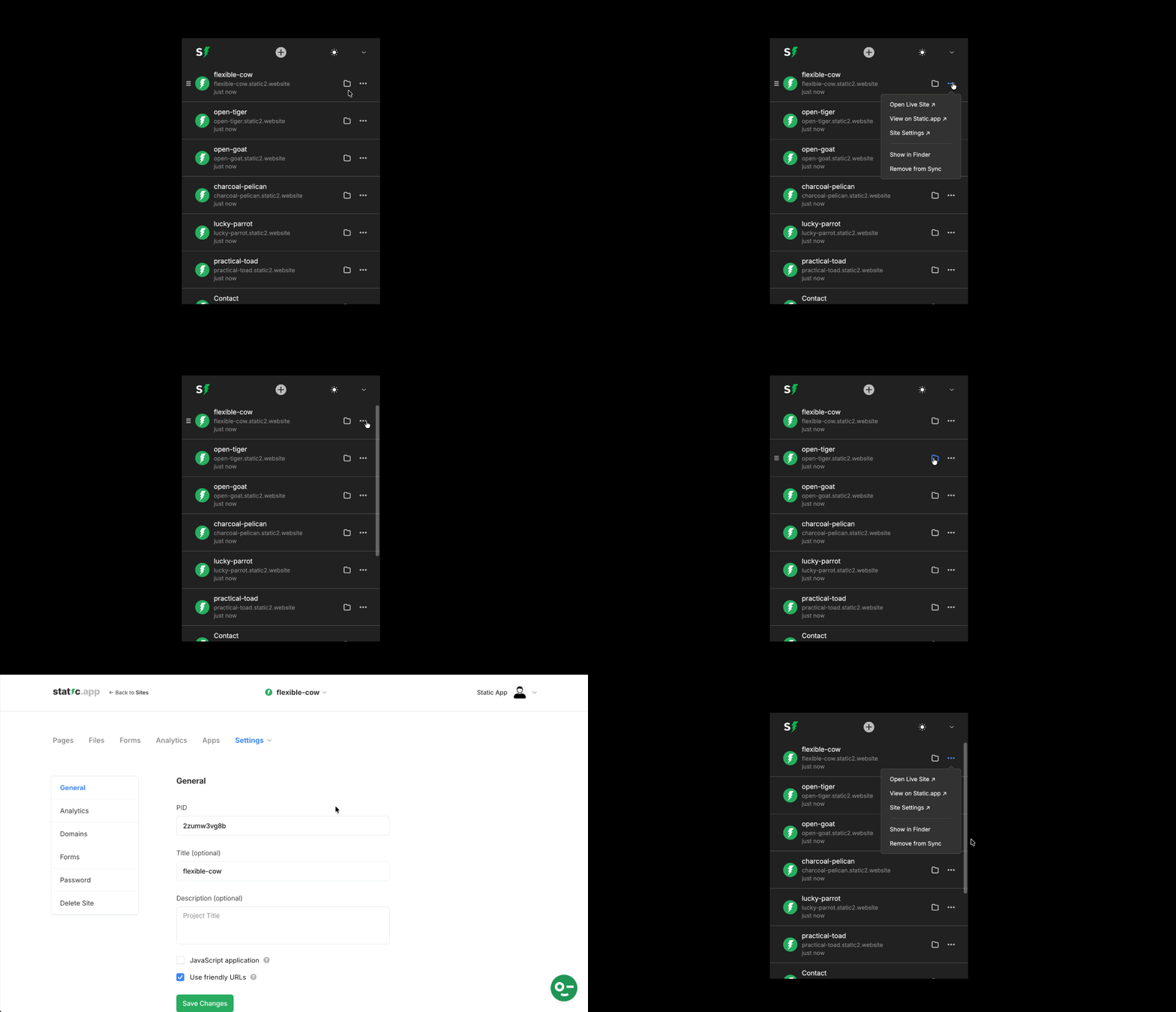
- Click the folder icon to immediately open and view the project files saved on your computer
- Click the three dots next to any project to open a menu with the following actions:
- Open Live Site: See exactly how your website looks live on the internet.
- View on Static.app: Open your project's dashboard on the web platform.
- Site Settings: Adjust the specific details and configurations of your site.
- Show in Finder: Quickly locate the exact folder on your computer.
- Remove from Sync: Stop updating and syncing this specific project.
Customize Your App Settings
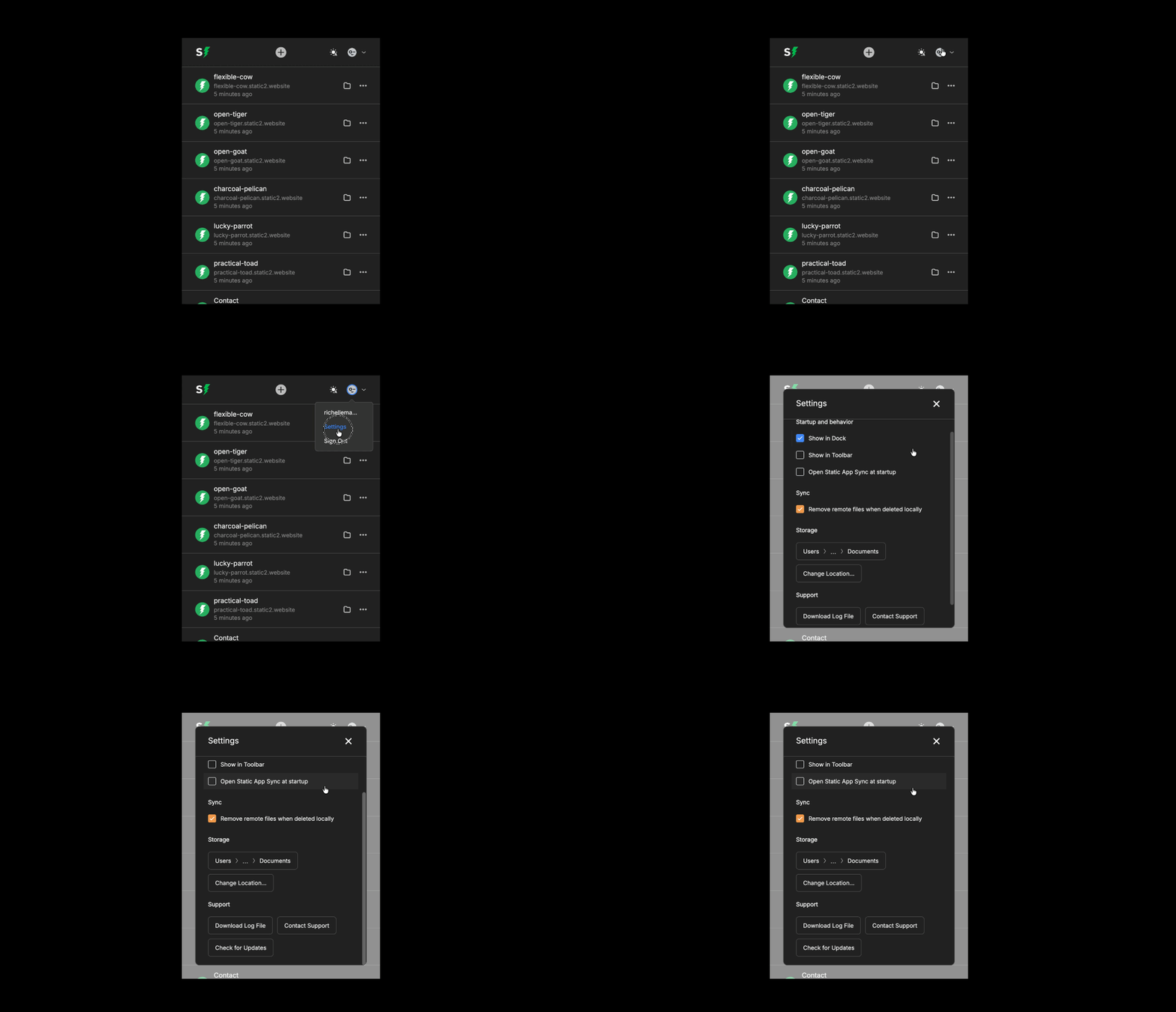
To make the app fit perfectly into your daily routine, you can also explore the Settings menu. Here, you have full control over how the application behaves and where your files are stored. The menu is divided into four simple sections:
- Startup and Behavior
- Show in Dock: Choose to display the app icon in your dock.
- Show in Toolbar: Pin the app to your menu bar for quick access.
- Open Static App Sync at Startup: Automatically launch the app when you turn on your computer so it is always ready.
- Sync:
- Remove remote files when deleted locally: Ensure that if you delete an image or page on your computer, it is automatically removed from your live website as well.
- Storage
- View File Path: See the exact local folder where your website files are currently saved.
- Change Location: Click this button to easily browse your computer and select a new destination workspace.
- Support
- Download Log File: Generate a file to share with the team, which is highly helpful if you need technical assistance.
- Contact Support: Reach out directly for help.
- Check for Updates: Make sure you are always running the newest, fastest version of the application.